

Images aren’t just decoration—they can help your website get more visitors! If you want to improve your site’s traffic and rankings, it’s important to know how to optimize images for Google. In this guide, we’ll show you easy, step-by-step ways to make your images search-friendly and boost your site’s performance.
Why Optimizing Images Matters
You might be wondering why image optimization matters if you’re already working on SEO. The truth is, images have a direct impact on both search rankings and user experience. Here’s why it’s important to focus on optimizing your images:
- Faster Website: Images load quickly, keeping visitors happy.
- Better SEO: Google understands your images and ranks your site higher.
- Extra Traffic: Optimized images can appear in Google Image search.
- Great User Experience: Clear images make your site look professional.
- Saves Data: Smaller images load faster on mobile devices.
- Accessible to Everyone: Alt text helps visually impaired users and boosts SEO.
10 Effective Ways to Optimize Images for Google
Now that you know why image optimization matters, here are 10 practical steps you can take to make your images SEO-friendly and help your website rank higher.
1. Research and Use Relevant Keywords
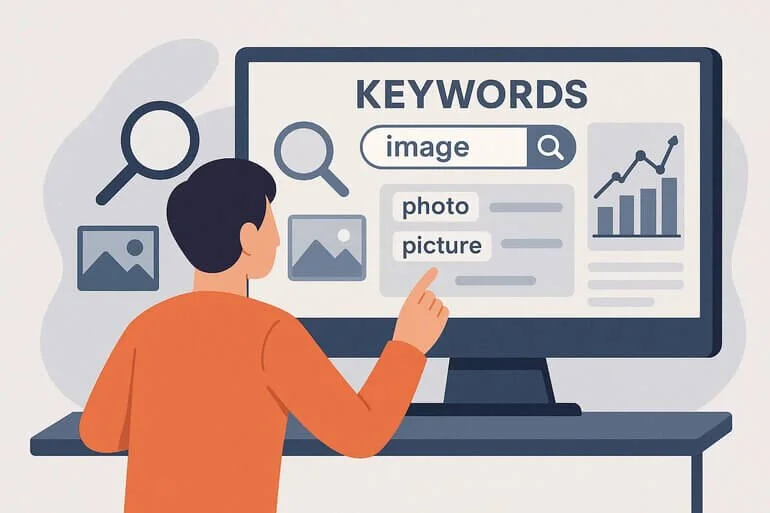
Before adding any image to your website, identify the keywords people are using to search for related content. These keywords will guide how you name and describe your images. You can use tools like Google Keyword Planner, Ubersuggest, or Ahrefs to find the right keywords. Choose a focus keyword for each image, just as you would for a blog post.
2. Name Images Properly
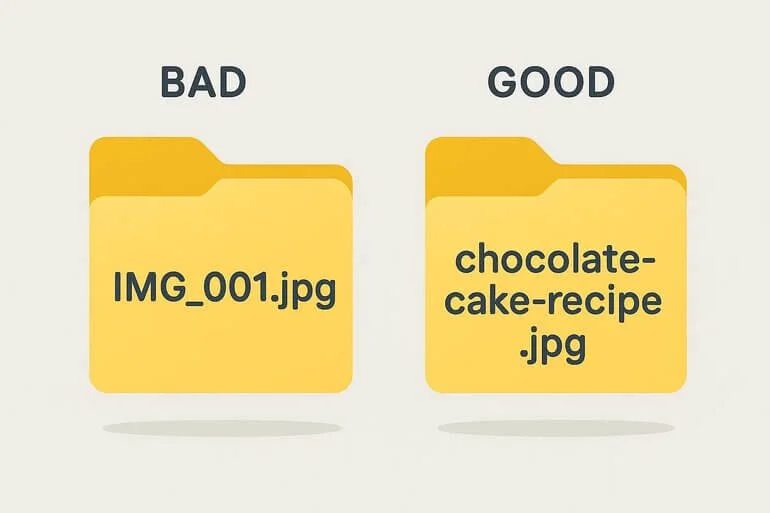
Give each image a clear and descriptive name that tells both users and search engines what it is. Google looks at image file names to understand what your image is about. Avoid generic names like IMG_001.jpg or photo.png.
Best Practices for Image File Names
- Be clear and descriptive.
- Use lowercase letters and hyphens (-) instead of spaces or underscores.
- Include your main keyword naturally.
Example
If your image is of a chocolate cake, instead of a generic label like IMG_1234.jpg, use a descriptive keyword like chocolate-cake-recipe.jpg.
3. Include Images in Your Sitemap
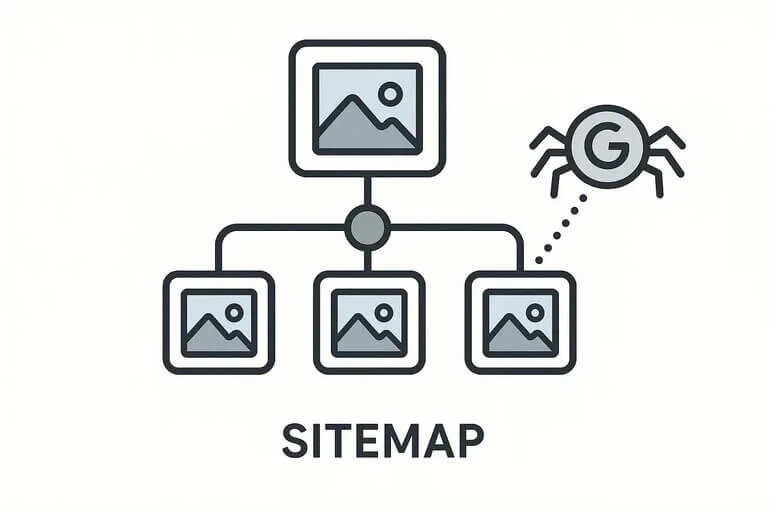
Search engines cannot interpret visual content directly. To help Google discover and index your images, include them in your XML sitemap. If you’re using WordPress, plugins like Yoast SEO or Rank Math automatically generate sitemaps that include images. For custom-built websites, manually list image URLs in the sitemap according to Google’s image sitemap guidelines.
4. Optimize Alt Text

Alt text (alternative text) is a short description of your image. It helps Google understand your image and improves accessibility for people using screen readers.
Alt Text Tips
- Describe the image clearly and accurately.
- Use relevant keywords naturally, but don’t overdo it.
- Keep it short—under 125 characters is best.
Example
For an image of a chocolate cake: “Homemade chocolate cake with chocolate frosting on a plate”
5. Use Title Tags for Additional Context
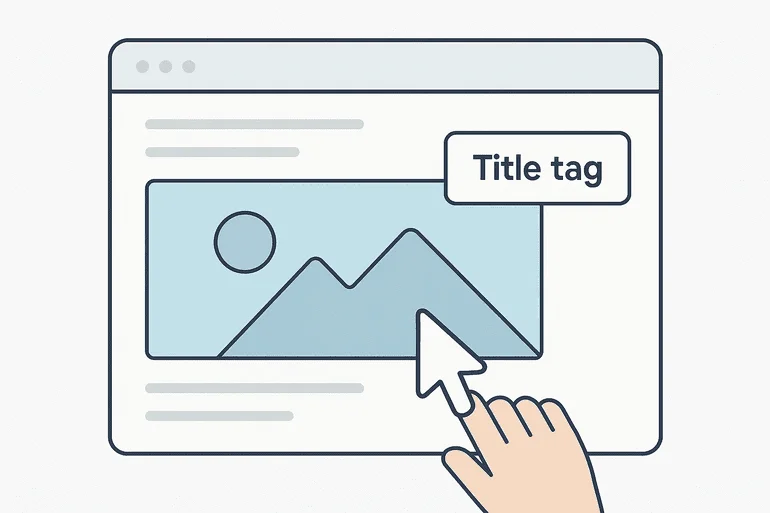
While alt text helps search engines, title tags are user-facing. They appear when a visitor hovers over an image, offering additional context.
- Use title tags to provide extra details, such as instructions or background information.
- Unlike alt text, title tags don’t need to contain keywords.
Example
Title: “This cake was baked using our special gluten-free recipe.”
6. Compress and Resize Images

Large, uncompressed images can make your website slow, which frustrates visitors and can hurt your Google rankings. Compressing images makes your site load faster, improving both user experience and SEO.
How to Compress Images
- Use online tools like TinyPNG, ShortPixel, or ImageOptim.
- For WordPress, install plugins such as Smush or Imagify.
Recommended File Sizes
- Web images: under 100 KB whenever possible.
- Hero images or full-screen visuals: under 500 KB.
Not sure how to make your images look great while keeping file sizes small? Our Photo Editing Services can enhance your images, adjust colors, remove backgrounds, and prepare them perfectly for your website.
7. Choose the Right File Format
Different image formats serve different purposes. Using the correct format can improve quality and reduce file size.
| Format | Best For | Benefits |
| JPEG | Photos, complex images | Small size, high compatibility |
| PNG | Graphics, transparency | Lossless quality, clear details |
| GIF | Simple animations | Limited colors, animation support |
| WebP | Modern websites | Smaller files, high quality |
Pro Tip: Use WebP or AVIF for modern browsers to reduce file size without sacrificing quality.
8. Write Contextual Body Content

While alt text is useful, it doesn’t fully describe the purpose of an image. Adding contextual content around your images helps Google understand their relevance.
Example
If you’re posting a product photo, include details like:
- Features
- Benefits
- Usage instructions
This not only improves SEO but also enhances user experience
9. Avoid Hiding Text in Images
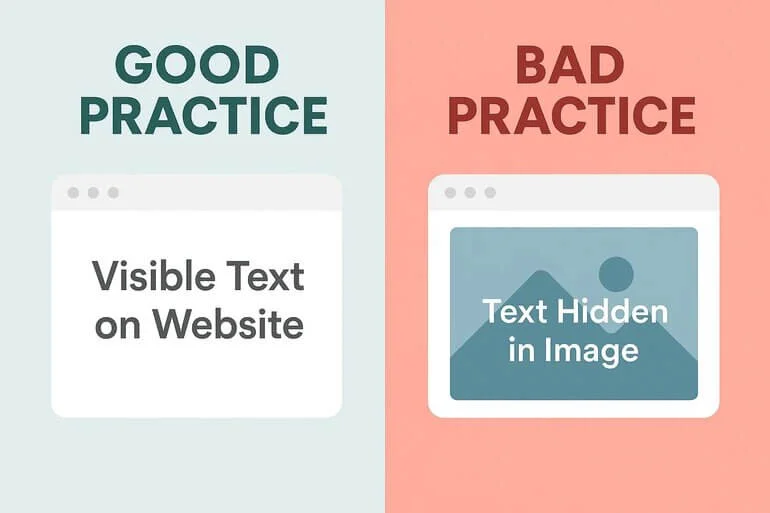
Using images in place of important text—like headings or navigation—can harm your SEO. Google considers hidden text a black-hat SEO technique. If you must use an image for branding purposes (like a logo in an H1), ensure you add proper alt text and captions so search engines can interpret it correctly.
10. Share Images on Social Media

Images are highly shareable and can help you build backlinks and drive traffic. Platforms like Pinterest, Instagram, and LinkedIn are great for visual content.
- Use branded hashtags to increase visibility.
- Encourage users to share your images with proper attribution.
- The more your images are linked and shared, the higher their chances of ranking in Google Images.
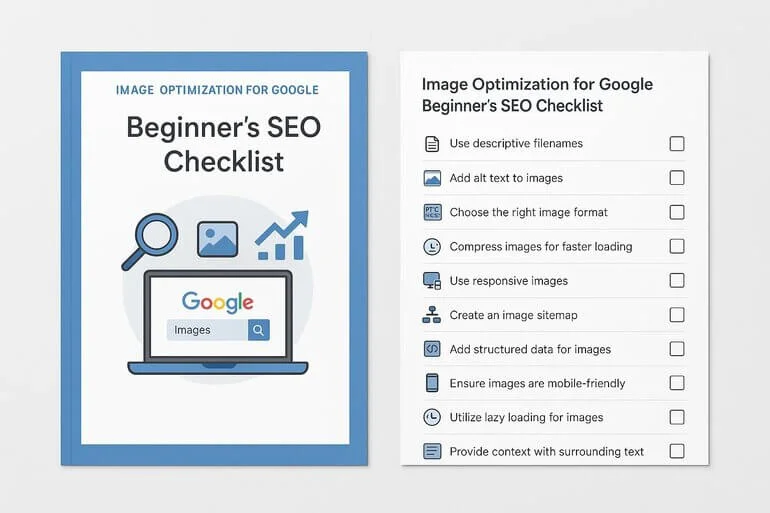
Tools for Image Optimization
Here are some recommended tools to simplify your workflow:
- Keyword Research: Google Keyword Planner, Ahrefs, SEMrush
- Compression: TinyPNG, ShortPixel, ImageOptim
- Sitemaps: Yoast SEO, Rank Math
- Format Conversion: CloudConvert, Squoosh
- Analytics: Google Search Console, Google Analytics
Final Thoughts on How to optimize images for Google
Optimizing images is an important part of SEO that many people forget. By doing things like using the right keywords, naming your image files properly, compressing them, and adding alt text, you can help your website rank higher on Google.
A good image strategy doesn’t just improve traffic—it also makes your site faster, easier to use, and more accessible for everyone. Start by checking the images on your website now, then apply these steps little by little. With regular effort, your site will load faster, look better, and show up higher in search results.
Quick FAQs: How to optimize images for Google
Faster loading, better SEO, and improved user experience.
Use SEO plugins like Yoast/Rank Math or manually list image URLs in your XML sitemap.
A short description of an image that helps Google and improves accessibility.
Use tools like TinyPNG or WordPress plugins like Smush, keeping files under recommended sizes.