
Have you ever resized an image in Photoshop only to lose its quality? Or applied a filter and later wanted to adjust it, but couldn’t? Smart Object Photoshop solves these problems.
A Smart Object is a special type of layer that preserves the original image data. This means you can resize, transform, or apply filters without losing quality. This guide will explain what Smart Objects are. You will learn how to use them, their benefits, and tips for photo editing.
What is a Smart Object in Photoshop?
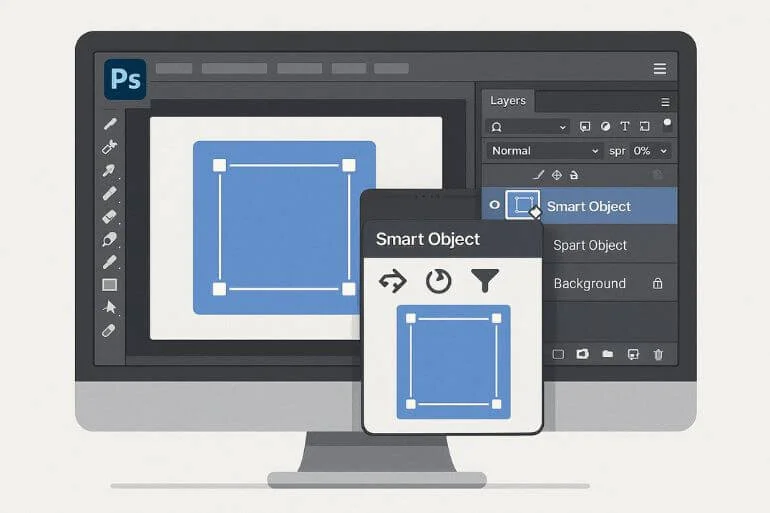
A Smart Object is a special kind of layer in Photoshop. It keeps your picture safe so you don’t lose quality. You can resize, rotate, or apply effects without breaking the image. To edit it, double-click the Smart Object. A new window opens. Make your changes there, save, and it updates in your main file automatically.
How Do You Convert a Picture to a Smart Object
Here’s how to work with Smart Objects in Photoshop:
Step 1: Import as a Smart Object
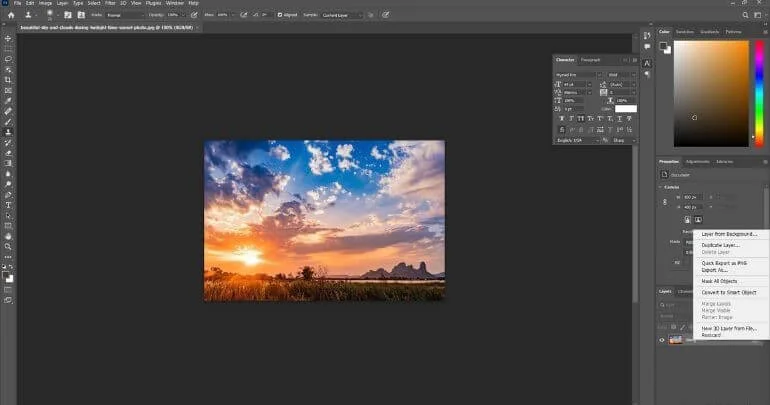
Open Photoshop and import your file as a Smart Object.
Step 2: Open the Photoshop Image Layer
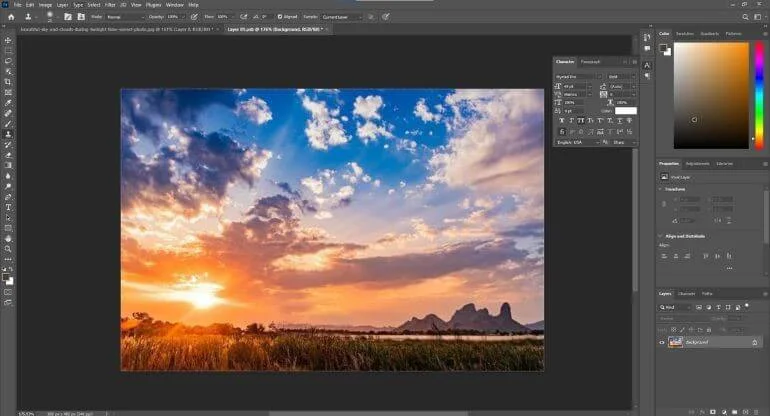
Right-click the file on the layer and select “Convert as Smart Object.”
Now that you know how to create and work with Smart Objects, let’s look at their key characteristics and why they make editing easier and safer.
Characteristics of a Smart Object

Speaking of the nature of the smart object, there are some characteristics we should learn about. So, let’s learn about the characteristics of a smart object.
- Non-Destructive Transformation: You can resize, rotate, scale, skew, distort, or wrap a Smart Object without affecting the original image.
- Works Well with Vector Data: Vector files stay sharp and editable. You can still apply effects to vectors, and rasterizing is simple if needed.
- Editable Filters: Any filter applied to a Smart Object becomes a Smart Filter. You can adjust, hide, or delete it anytime.
- Modifiable Layers: Double-click the Smart Object icon in the Layers panel to edit it in a new window. Save changes, and your main project updates automatically.
- Advanced Resizing: You can shrink the Smart Object and return it to its original size. Enlarging beyond the original size may cause pixilation in raster files.
Limitations of Smart Objects in Photoshop
Photoshop Smart Object is useful but have some limits:
- Editing: You cannot paint or use tools like the Brush or Dodge directly. Rasterize the layer to make these edits. Some warps also require rasterizing.
- Performance & File Size: They store all original data, which can slow down Photoshop and increase file size.
- Other Considerations: Linked files may not always update perfectly with complex edits. Changes to the internal canvas may appear differently in the main document.
Rasterize vs Smart Object: When to Use Each
| Feature | Smart Object | Raster Layer |
| Non-destructive | Yes | No |
| Editable filters | Yes | No |
| Resize without quality loss | Yes | No |
| Direct pixel editing | No | Yes |
Use Smart Objects for images you may transform multiple times. Rasterize only when you need direct pixel editing.
Tips & Best Practices for Smart Object Photoshop
- Always save projects as PSD to preserve Smart Objects.
- Use RAW images for maximum flexibility.
- Keep layers organized and named clearly.
- Combine multiple Smart Objects for complex projects.
- Apply effects before rasterizing to retain editability.
Ready to level up your Photoshop skills?
Try combining Smart Objects with advanced tools like Photoshop Blend Modes, Outline Text Effects, or Hue & Saturation Adjustments.
Frequently Asked Questions (FAQ)
It’s a special layer that preserves image data for non-destructive editing. You can resize, transform, and apply filters without losing quality.
Vector Smart Objects can scale infinitely without pixelation, while raster Smart Objects may pixelate if enlarged too much.
To convert a layer to a Smart Object, right-click it and choose ‘Convert to Smart Object’ or go to Layer > Smart Objects > Convert to Smart Object
Final Thought
Smart Object Photoshop is a powerful feature that preserves image quality, allows non-destructive editing, and makes complex workflows easier. By mastering Smart Objects, you can save time, work more efficiently, and create professional-quality designs.
Experiment with Smart Objects in your projects and see how much easier photo editing becomes. For more in-depth guidance, check out Adobe’s official Photoshop Smart Objects guide.