
Choosing the wrong background removal tool wastes time, produces rough edges, and can make your images look unprofessional. With dozens of options available in 2026, the choice depends on your image type, volume, and budget.
This guide covers the 7 best background removal tools for Windows, from AI-powered online tools to professional desktop software, with a clear breakdown of speed, quality, pricing, and the exact situations where each tool performs best.
Quick Comparison: Top 7 Tools at a Glance
| Tool | Speed | Best For |
|---|---|---|
| Adobe Photoshop | Medium | Hair, fur, complex edges, ecommerce |
| Remove.bg | Instant | Simple products, quick social media edits |
| GIMP | Fast | Smoke, gradients, glow effects |
| Canva | Instant | Social media graphics, non-technical users |
| Photoroom | Instant | Ecommerce, Shopify, marketplace listings |
| Pixlr | Fast | Freelancers, browser-based quick edits |
| Microsoft Paint | Fast | Basic background removal for beginners on Windows |
Some tools prioritize speed, while others focus on precision and professional-quality edge refinement.
Best Background Removal Software for Windows in 2026
Choosing the right background removal software can significantly improve editing speed, image quality, and workflow efficiency. Some tools are built for quick AI-powered edits, while others offer advanced control for professional ecommerce and studio photography. Below are the best background removal tools for Windows in 2026 based on performance, ease of use, and editing precision.
1. Adobe Photoshop — Best Overall for Professional Editing
- Best for: Professional photographers, ecommerce sellers, designers handling complex edges.
- Pricing: From $22.99/month (Photography Plan). Available on Windows 10 and 11.
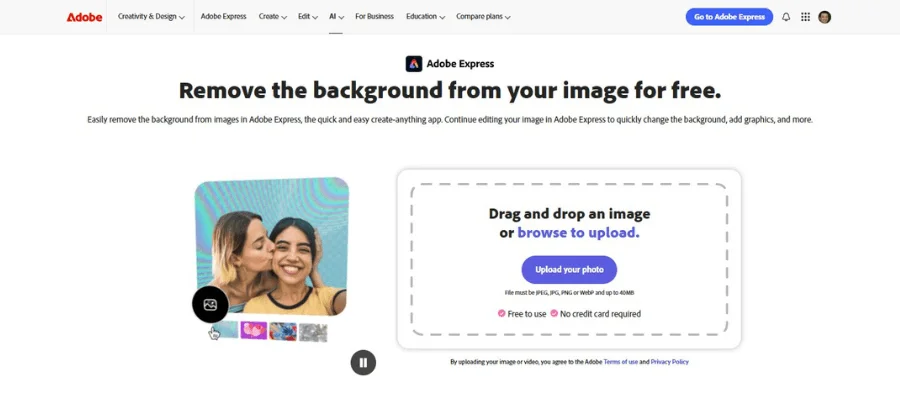
Adobe Photoshop remains the gold standard for background removal. Its Select & Mask workspace, Refine Edge Brush, and AI-powered Remove Background button give you unmatched control over complex images. It excels where AI tools consistently fail such as hair, fur, dark subjects, and semi-transparent objects.
2. Remove.bg — Best AI Tool for Quick Edits
- Best for: Ecommerce sellers, social media creators, developers needing API access.
- Pricing: Free (low-resolution preview). Paid plans for HD downloads and API credits.
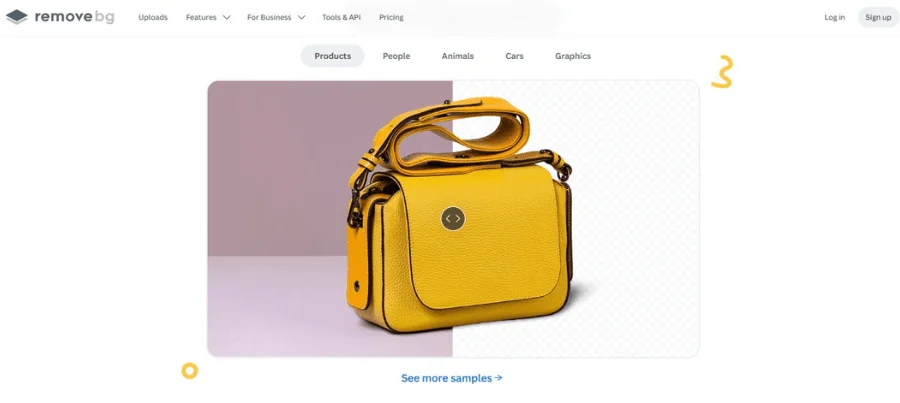
Remove.bg is the most recognized name in AI background removal. Upload an image, and the background is gone in seconds. It handles clean product shots, portraits, and objects with clear contrast reliably. For bulk processing, its API integrates directly into design and ecommerce workflows.
3. GIMP — Best Free Desktop Software
- Best for: Budget-conscious users, photographers, designers handling smoke and glow effects.
- Pricing: 100% free and open source. Available on Windows 10 and 11.
GIMP is the best free background removal software for Windows. Its Color to Alpha feature converts black or white backgrounds directly into transparency while preserving soft edges, smoke, gradients, and glow effects that hard selections destroy. No subscription, no watermarks, no limits.
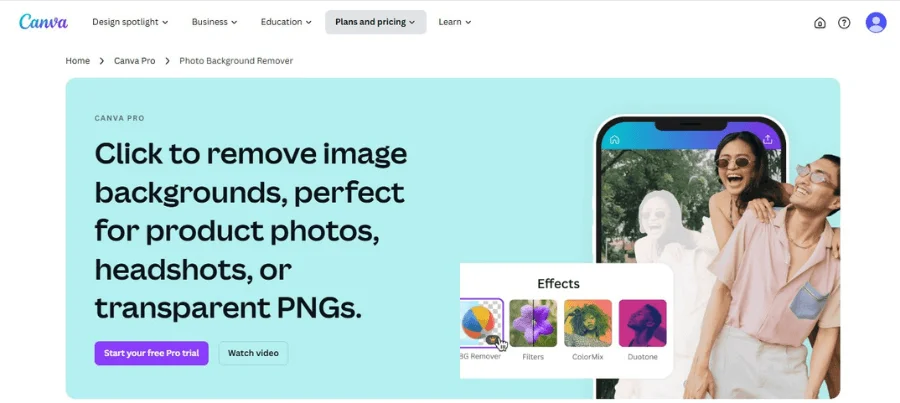
4. Canva — Best for Social Media Creators
- Best for: Social media creators, marketers, small business owners.
- Pricing: Canva Pro required ($15/month). Available via browser and Windows desktop app.
Canva’s built-in Background Remover is one of the most accurate one-click tools available for non-technical users. It lives inside Canva’s design editor, so you can remove a background and drop the cutout directly into a social post, presentation, or ad template — all in one workflow.
5. Photoroom — Best for Ecommerce Product Photos
- Best for: Ecommerce sellers, product photographers, marketplace vendors.
- Pricing: Freemium. Paid plans for HD output and batch processing.
Photoroom started as a mobile background removal app and has grown into a full AI product photography studio. It integrates background removal with AI scene generation, product staging, and batch processing — purpose-built for Shopify, Amazon, and marketplace listings.
6. Pixlr — Best Browser-Based Editor for Freelancers
- Best for: Freelancers, students, small business owners on a budget.
- Pricing: Free (limited). Paid plans from $1.49/month.
Pixlr is a browser-based photo editor with one-click background removal, batch upload support, and manual refinement tools including a magic tool, lasso, and erase/restore brushes. It performs well on images with multiple subjects when the contrast is strong.
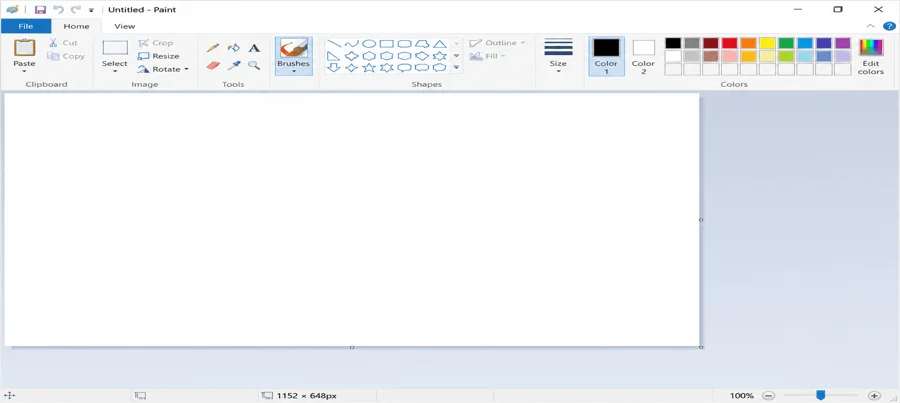
7. Microsoft Paint — Best Built-In Free Tool for Windows
- Best for: Beginners, and quick background removal on Windows.
- Pricing: Free. Built into Windows 11.
Microsoft Paint has improved significantly in recent Windows versions with built-in AI background removal features. It offers a simple and beginner-friendly way to remove backgrounds without installing additional software. While it lacks advanced edge refinement tools, it works surprisingly well for basic product photos and simple objects.
Real Background Removal Test Results
We tested each tool using identical product images on Windows 11, focusing on hair masking, edge quality, transparency handling, and ease of use.
| Tool | Hair Accuracy | Edge Quality | Batch Editing | Ease of Use |
|---|---|---|---|---|
| Photoshop | Excellent | Excellent | Medium | Advanced |
| Remove.bg | Good | Good | Excellent | Very Easy |
| Canva | Average | Average | Limited | Very Easy |
| GIMP | Very Good | Very Good | Medium | Intermediate |
| Photoroom | Good | Good | Excellent | Easy |
| Pixlr | Good | Good | Medium | Easy |
| Microsoft Paint | Basic | Basic | None | Very Easy |
When AI Tools Are Not Enough: Professional Background Removal
AI tools handle the majority of background removal tasks well. But for images where quality cannot be compromised like complex jewelry, dark hair on dark backgrounds, high-end product photography, or marketplace listings that require pixel-perfect edges. Professional editing services consistently deliver cleaner results than automated tools.
At Clipping World, our editors combine manual clipping paths with precision masking to deliver consistent, marketplace-ready images at scale. We handle everything from basic white background removal to complex jewelry, hair, and dark-background editing.
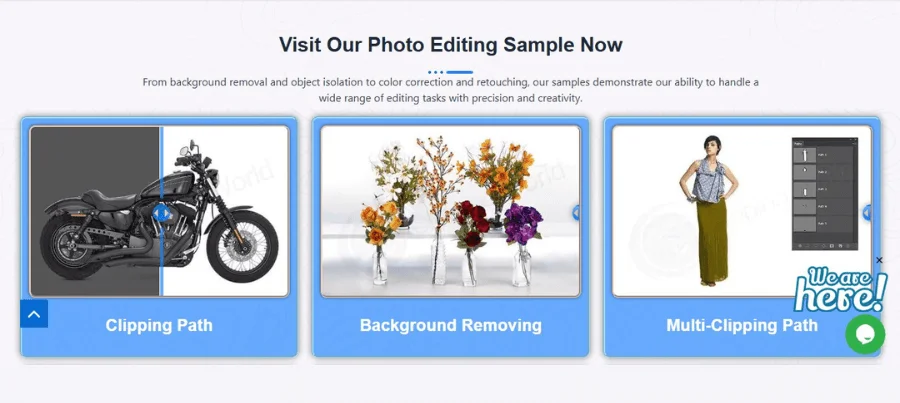
- Manual clipping paths for pixel-perfect edges
- Hair and fur masking with strand-level detail
- Dark and black background removal for complex subjects
- Batch processing for ecommerce and product photography
- Consistent results across Amazon, Shopify, and marketplace standards
If your AI tool is leaving rough edges, dark halos, or missing fine details, professional photo editing service provider is the reliable alternative.
Which Tool Should You Use? (Quick Decision Guide)
- Quick social media edit: Remove.bg or Canva
- Hair, fur, or complex edges: Adobe Photoshop Select & Mask
- Smoke, glow, or gradients: GIMP Color to Alpha
- Windows desktop (free): GIMP
- Ecommerce product photos: Photoroom
- Beginner-friendly Windows editing: Microsoft Paint
- Free HD downloads: GIMP
- Pixel-perfect professional results: Clipping World professional service
Common Background Removal Mistakes to Avoid
Even powerful background removal tools can produce poor results when used incorrectly. Here are some of the most common mistakes to avoid:
- Saving as JPG instead of PNG
- Using AI tools on dark subjects
- Ignoring edge fringing and dark halos
- Not previewing on different backgrounds
- Using high tolerance in Magic Eraser
Signs Your Background Removal Looks Unprofessional
Even after removing a background, poor editing can still make images look unprofessional. Here are the most common quality issues businesses should avoid:
- Rough or jagged edges around products
- Dark halos left from black backgrounds
- Missing hair strands or transparent details
- Inconsistent shadows and lighting
- Over-smoothed edges that look artificial
- Incorrect white balance after editing
Professional retouching focuses on preserving natural edges, clean transparency, and realistic lighting for a polished final result.
FAQs on Background Removal Tools for Windows
GIMP is the best free desktop software for Windows. It offers Color to Alpha, Fuzzy Select, and manual masking tools with no watermarks, no usage limits, and no subscription required. For browser-based free options, Erase.bg offers free high-resolution downloads without watermarks.
Yes. Remove.bg, Canva, and GIMP all remove backgrounds without Photoshop. AI tools are faster for simple images, while GIMP provides more manual control for complex cases like gradients, smoke, and glow effects.
Adobe Photoshop’s Select and Mask workspace delivers the best results for hair and fur. The Refine Edge Brush preserves fine strands, and enabling Decontaminate Colors reduces the dark halos that backgrounds leave behind. No AI-only tool currently matches Photoshop’s precision for this use case.
Yes. Adobe Photoshop and GIMP both work as offline desktop applications on Windows. These are the best options for users who work with high volumes of images, need privacy, or have unreliable internet access.
For ecommerce, Photoroom offers the most complete workflows — combining background removal with AI backgrounds, upscaling, and marketplace formatting. For volume processing with pixel-perfect edges, professional services like Clipping World deliver more consistent results than automated tools alone.
Final Thoughts
The best background removal tool for Windows depends entirely on your image type, volume, and budget. AI tools like Remove.bg and Canva handle quick edits in seconds. Photoshop and GIMP give you precision for complex images, while tools like Photoroom and Pixlr help speed up modern ecommerce workflows.
Start with the fastest tool that fits your use case. Move to more advanced software when you need cleaner, more precise results. And for ecommerce, marketplace listings, or client work where quality cannot be compromised — professional editing services deliver the consistency that automated tools cannot.
About the Author
Written by Clipping World Editors — professional ecommerce photo editing specialists with experience handling thousands of product images for Amazon, Shopify, and global brands.