
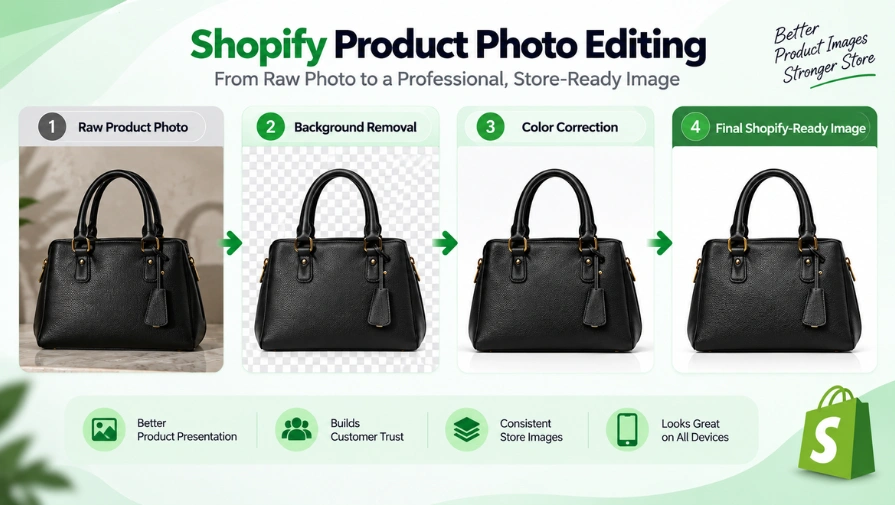
Shopify product photo editing is the process of improving product images for an online store. It includes background removal, color correction, retouching, cropping, resizing, and other edits that make product photos clear, accurate, and consistent. These edits help prepare product images for a professional Shopify store across desktop and mobile devices.
This guide covers Shopify image requirements, editing techniques, tools, image optimization, SEO tips, and best practices. You’ll also learn how to prepare product photos for your Shopify store.
What Does Shopify Product Photo Editing Include?
Shopify product photo editing can involve several steps based on the product and image quality. The required edits depend on the original photo, store style, and product category.
Common editing tasks include:
- Background Removal: Remove distracting backgrounds and create a clean presentation.
- Color Correction: Adjust colors to better match the actual product.
- Photo Retouching: Remove dust, lint, scratches, and minor distractions.
- Cropping and Resizing: Create consistent framing and suitable image dimensions.
- Shadow Creation: Add subtle shadows to give products natural depth.
- Lighting Adjustment: Improve brightness, exposure, contrast, and overall clarity.
- Image Optimization: Prepare images with practical dimensions and file sizes.
- Image SEO Preparation: Use descriptive file names and useful alt text.
The exact workflow depends on the product and editing requirements. The goal is to improve presentation while keeping the product accurate and recognizable.
Why Is Product Photo Editing Important for Shopify Stores?
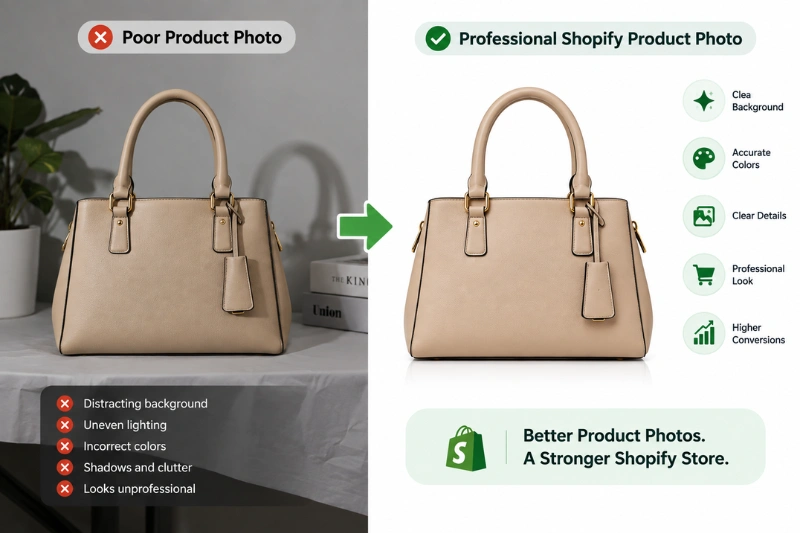
Product photos help shoppers evaluate products before buying. Customers cannot touch or inspect products in person. Clear images give them useful visual information before purchase.
Builds Customer Trust
Professional product photos can make your store look more reliable. Clear details help shoppers understand what they are considering. Accurate images also set realistic product expectations. This can help create a more transparent shopping experience.
Creates a Professional Store Appearance
A consistent image style makes your Shopify store look organized. Similar framing and presentation can create a stronger visual identity. This is especially useful for stores with many products. A uniform catalog also makes product browsing easier.
Helps Shoppers Understand Products
Good product photos show important product features clearly. Different angles can reveal details that one image cannot show. Close-up images can also highlight materials, textures, and finishes. This gives shoppers more information before they make a purchase.
Supports Product Comparison
Consistent product images make similar products easier to compare. Shoppers can quickly notice differences in color, size, design, or features. A clear visual presentation can make product selection easier. This is especially useful for stores with many similar products.
Improves the Shopping Experience
Well-presented images make product pages easier to understand. Shoppers can focus on the product instead of distracting visual elements. A better visual experience can also make browsing more comfortable. This matters across both desktop and mobile shopping.
What Are Shopify Image Requirements?
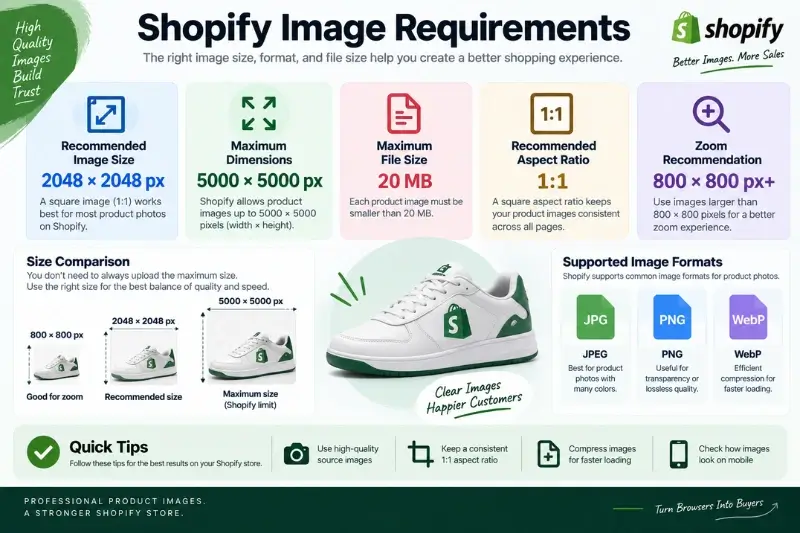
Shopify product images can be up to 5000 × 5000 pixels. Each image must be smaller than 20 MB. These limits aren’t targets for every product image, and the recommended working size is covered below. Good Shopify images should balance quality, dimensions, and file size.
| Shopify Image Factor | Practical Guidance |
|---|---|
| Maximum dimensions | 5000 × 5000 pixels |
| Practical working size | 2048 × 2048 pixels |
| Maximum file size | Under 20 MB |
| Common formats | JPEG, PNG, WebP |
| Square aspect ratio | 1:1 works well |
Recommended Shopify Product Image Size
For most Shopify product photos, 2048 × 2048 pixels is a practical choice. A square 1:1 aspect ratio also keeps product images consistent across collection and product pages. Shopify allows images up to 5000 × 5000 pixels. However, you don’t need to upload every image at the maximum size.
Shopify Image File Size Limit
Shopify supports product images up to 20 MB per image. However, this is the maximum limit, not the ideal size. Large images can take longer to load, especially on mobile devices. Aim for the smallest practical file size while preserving product detail and image quality.
Supported Image Formats
Choosing the right image format helps balance quality and performance. Common formats include JPEG, PNG, and WebP. JPEG is a practical choice for many product photographs. WebP is also supported and can provide efficient web delivery. PNG is useful when transparency or lossless quality is important.
Shopify Image Resolution and Quality
Image dimensions show an image’s pixel width and height. Image quality depends on detail, sharpness, and the original source. A high-quality source image gives you more editing flexibility. However, uploading an unnecessarily large file doesn’t create a better shopping experience.
For Shopify stores, focus on clear details, accurate colors, suitable dimensions, and efficient file sizes. This helps maintain product quality without adding unnecessary image weight.
What Are the Core Shopify Product Photo Editing Techniques?
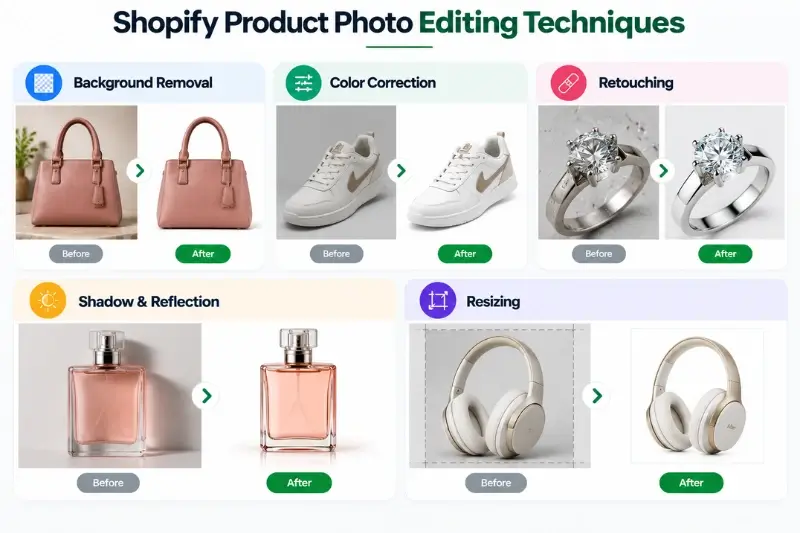
Shopify product photo editing uses different techniques for different image problems. These techniques improve clarity, consistency, and presentation without changing the actual product.
Background Removal and Replacement
Background removal creates a clean focus on the product. White or neutral backgrounds work well for many ecommerce product photos.
Color Correction and White Balance
Color correction helps product photos show accurate colors. White balance also helps remove unwanted warm or cool color tones.
Cropping and Product Image Resizing
Cropping removes unnecessary space around the product. Resizing helps keep product images consistent across your Shopify store.
Product Photo Retouching
Product photo retouching removes small distractions from product photos. Common examples include dust, scratches, lint, fingerprints, and minor imperfections.
Shadow and Reflection Effects
Shadows can make products look grounded and natural. Subtle reflections can also work well for products such as jewelry or polished items.
Lighting and Exposure Correction
Lighting adjustments can improve dark or uneven product photos. Brightness, contrast, highlights, and shadows can help reveal important product details.
How To Edit Product Photos For Shopify
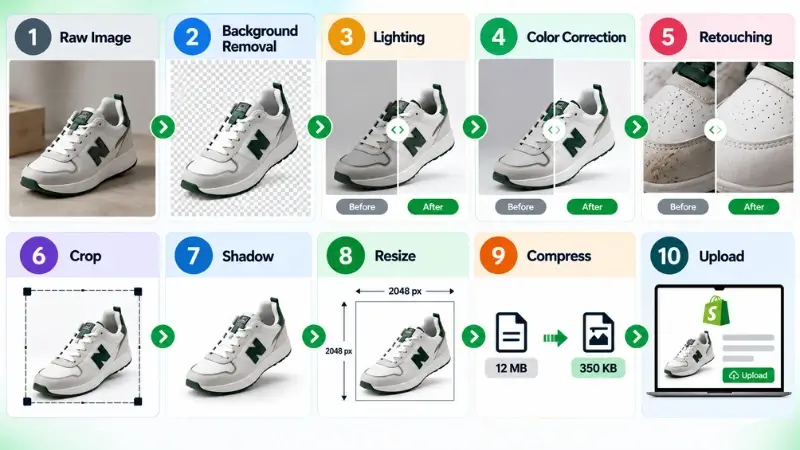
A simple Shopify photo editing workflow can improve image quality and consistency. Follow these steps from the original photo to the final upload.
Step 1 — Review the Raw Product Image
Start with the original product photo. Check its lighting, colors, sharpness, background, and composition. Identify any problems that need editing before you begin.
Step 2 — Remove the Background
Remove unwanted backgrounds when needed. Use a clean white or neutral background for a simple ecommerce look. Keep product edges clean and preserve small details.
Step 3 — Fix Lighting and White Balance
Adjust brightness and exposure if the image looks too dark or bright. Correct the white balance to create natural-looking light. Keep the product details clearly visible.
Step 4 — Correct Product Colors
Compare the image with the actual product. Adjust colors if they look too warm, cool, dull, or saturated. Keep the final colors as accurate as possible.
Step 5 — Retouch Product Imperfections
Remove distractions such as dust, lint, fingerprints, and minor scratches. For apparel, you can also reduce distracting wrinkles. Don’t remove genuine product features or textures.
Step 6 — Crop and Center the Product
Remove unnecessary empty space around the product. Then center the product within the frame. Keep similar products at a similar size and position.
Step 7 — Add A Natural Shadow
Add a soft shadow when the product needs more depth. Match the shadow with the direction of the existing light. Keep the effect subtle and realistic.
Step 8 — Resize for Shopify
Resize the finished image to a suitable Shopify dimension. Keep the same aspect ratio across similar products. Make sure the final image provides enough detail without unnecessary file weight.
Step 9 — Export and Prepare the Image
Export the image in a suitable format such as JPEG or WebP. Keep the image clear and avoid unnecessary file weight. Shopify automatically optimizes images for storefront delivery, so manual compression is not always necessary.
Step 10 — Upload and Check on Mobile
Upload the finished image to your Shopify store. Check it on both desktop and mobile screens. Make sure the product looks clear, centered, and properly sized before publishing.
Shopify Product Photo Editing Tools

Shopify store owners can use different tools to edit product photos. The right tool depends on the type of editing you need. Some Shopify photo editing tools are better for quick edits, while others offer advanced photo editing features.
Shopify Media Editor
Shopify has a built-in Media Editor for basic image editing. You can crop, rotate, draw on images, and edit alt text directly in Shopify. It also supports background removal and replacement features. This makes it useful for quick edits without leaving your Shopify admin.
Adobe Photoshop
Adobe Photoshop is useful for detailed product photo editing. It gives you precise control over backgrounds, colors, lighting, retouching, shadows, and image composition. This tool works well when product images need complex or professional edits.
Adobe Lightroom
Lightroom is useful for improving lighting, exposure, white balance, and colors. It works especially well when you need similar adjustments across many product photos. It is a practical choice for stores that receive large sets of product photos from a photoshoot.
Canva
Canva provides simple tools for basic product image editing. You can resize images, remove backgrounds, add simple designs, and prepare visuals for different store needs. It is easier to learn than advanced editing software. However, complex product retouching may require more specialized tools.
Photoroom
Photoroom focuses on product photography and background editing. It can quickly remove backgrounds, create clean product images, and prepare photos for ecommerce use. It can be useful when you need fast edits for a large number of product images.
Which Shopify Product Photo Editing Tool Should You Use?
Choose a tool based on the editing work involved.
| Editing Need | Suitable Tool |
|---|---|
| Basic Shopify image edits | Shopify Media Editor |
| Advanced retouching | Adobe Photoshop |
| Color and lighting adjustments | Adobe Lightroom |
| Simple designs and resizing | Canva |
| Quick background removal | Photoroom |
For simple edits, built-in or easy-to-use tools may be enough. For complex product images or large catalogs, advanced editing workflows can provide more control and consistency.
Shopify Product Photo Editing Best Practices
Good editing should improve presentation without changing the actual product. The goal is to create images that look clean, accurate, and consistent.
Keep Product Colors Accurate
Make sure edited colors closely match the real product. Correct white balance and color tones when necessary. Avoid excessive saturation or dramatic color changes. Customers should see a realistic representation of the product.
Use Clean and Consistent Backgrounds
Choose a background style that fits your store. White and neutral backgrounds work well for many product catalogs. Keep similar products on similar backgrounds. Avoid distracting objects, patterns, or unnecessary visual elements.
Keep Product Framing Consistent
Place similar products at similar sizes and positions. Keep enough space around each product without creating excessive empty areas. Consistent framing helps collection pages look more organized. It also makes products easier to compare.
Preserve Natural Product Details
Retouching should remove distractions without hiding important details. Keep textures, materials, patterns, and genuine product features visible. Avoid making surfaces look unnaturally smooth. The final image should still represent the actual product.
Use Realistic Shadows
Add shadows when they improve depth and product presentation. Match the shadow direction with the existing light source. Keep shadows soft and subtle. Strong artificial shadows can make products look unnatural.
Avoid Over-Editing
Do not use excessive sharpening, smoothing, or saturation. Heavy editing can make products look different from reality. Use editing to solve specific image problems. Keep the final result polished but believable.
Maintain A Consistent Visual Style
Choose a clear editing style for your product catalog. Keep backgrounds, framing, lighting, and shadows visually consistent. This approach helps create a recognizable store appearance. It also makes large product catalogs easier to manage.
How To Edit Different Shopify Product Categories

Different products need different editing techniques. The goal is to improve each image while keeping the product accurate and natural.
Apparel Product Photos
Apparel images often need clean and detailed editing. Common edits include:
- Ghost mannequin effects
- Wrinkle removal
- Background removal
- Fabric detail enhancement
Keep the fabric texture and product shape natural. Avoid edits that change the actual clothing design.
Jewelry Product Photos
Jewelry needs careful editing because small details are important. Common edits include:
- Dust removal
- Reflection control
- Shine enhancement
- Scratch removal
Keep metals, gemstones, and fine details accurate. Avoid excessive shine that makes jewelry look unrealistic.
Electronics Product Photos
Electronics need clean edges and precise alignment. Common edits include:
- Edge cleanup
- Product alignment
- Screen cleanup
- Natural shadow creation
Keep screens, buttons, ports, and other product details clear. Make sure the final image accurately represents the product.
Furniture Product Photos
Furniture images often need careful background and perspective editing. Common edits include:
- Background cleanup
- Perspective correction
- Shadow enhancement
Keep the furniture’s proportions and shape accurate. Natural shadows can also help the product look grounded.
How Shopify Image Editing Affects SEO

Product image editing can support Shopify SEO when it improves image context, usability, and accessibility. However, editing alone does not guarantee higher search rankings.
Use Descriptive Image File Names
Give each image a clear and relevant file name. Include useful product information when appropriate.
For example:
black-leather-handbag.jpg
Avoid generic names such as:
IMG_1234.jpg
Descriptive names provide clearer context about the image.
Add Useful Alt Text
Alt text describes an image for people using screen readers and also helps search engines understand the image. Write short descriptions that accurately explain what the image shows.
For example:
Black leather handbag with gold zipper
Avoid adding unrelated keywords or repeating keywords unnecessarily.
Use Relevant Product Images
Every product image should clearly relate to the product. Use images that help shoppers understand its appearance and features. Relevant images also provide better context for search engines. Avoid uploading decorative or unrelated images as product photos.
Keep Images Accurate
Your images should represent the real product clearly. Avoid editing that changes colors, shapes, materials, or important product features. Accurate images create better expectations for shoppers. They also provide more reliable visual information.
Support Image Accessibility
Useful alt text helps people using screen readers understand product images. Clear image descriptions can make product pages more accessible. Accessibility should be considered alongside visual presentation. Do not write alt text only for search engines.
Improve Image Context
Use product images alongside relevant product titles and descriptions. Consistent visual and textual information gives search engines better context. Image SEO works as part of the overall product page. It should support, rather than replace, useful product content.
Important: Image editing is not a direct ranking guarantee. It supports SEO through better image context, accessibility, usability, and page performance.
How to Optimize Shopify Product Images for Speed
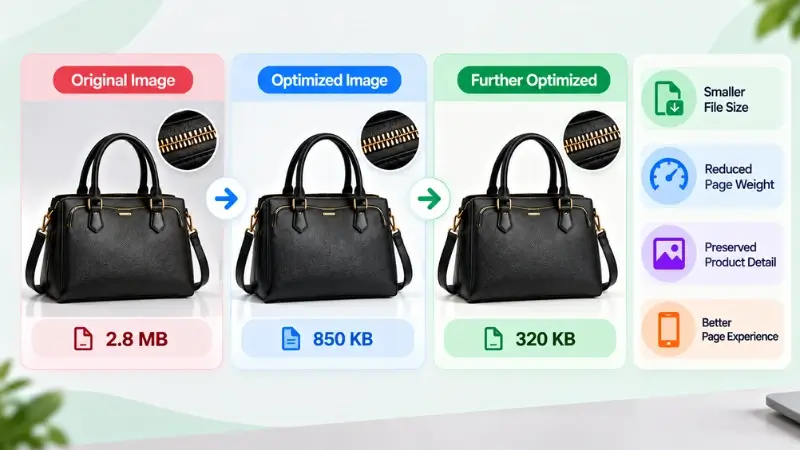
Image optimization focuses on reducing unnecessary image weight. The goal is to keep product photos clear while helping pages load efficiently.
Use Suitable Image Dimensions
Start with an image size that provides enough detail for shoppers. Avoid uploading unnecessarily large dimensions when they provide no visible benefit. For many square product images, 2048 × 2048 pixels is a practical working size. Adjust dimensions when the product or layout requires a different format.
Avoid Unnecessary Image Weight
Keep image dimensions and file sizes practical for your store. Avoid unnecessary resizing or compression that reduces useful product detail. Shopify automatically optimizes images for storefront delivery, so manual compression is not always required.
Choose An Efficient Format
JPEG works well for many product photographs. WebP can provide efficient compression for supported web images. PNG is useful when transparency or lossless quality is important. Choose the format based on the image rather than using one format for everything.
Avoid Unnecessarily Large Files
Large files can require more data to load. This can be especially noticeable on slower mobile connections. Keep image files as small as practical. Always balance file size with product detail and visual quality.
Avoid Too Many Heavy Images
Multiple large images can increase the total page weight. Product pages with many high-resolution images may require more resources to load. Use enough images to show useful product information. Avoid adding large images that do not provide meaningful value.
Check Mobile Performance
Review product pages on mobile devices before publishing. Check whether images load efficiently and remain clear at smaller screen sizes. Also look for unnecessary empty space or oversized images. Small adjustments can improve the overall browsing experience.
Consider Other Performance Factors
Image optimization is only one part of Shopify performance. Themes, apps, scripts, fonts, and other page resources can also affect loading speed. Shopify can optimize and deliver images through its storefront infrastructure. However, keeping source images practical still helps avoid unnecessary image weight.
How Image Optimization Supports Core Web Vitals
Large images can affect page loading and visual stability. Proper image sizing and efficient delivery can help reduce unnecessary page weight. However, image editing alone cannot fix Core Web Vitals. Review the complete page when performance problems continue.
Common Shopify Product Photo Editing Mistakes
Avoiding common editing mistakes can improve your product presentation. Here are some issues to watch for:
- Inconsistent image sizes: Keep dimensions and ratios consistent.
- Distracting backgrounds: Use clean, simple backgrounds.
- Over-compression: Keep images sharp and clear.
- Wrong colors: Keep product colors accurate.
- Over-retouching: Preserve natural product details.
- Poor source images: Start with clear, sharp photos.
- Ignoring mobile: Check images on mobile screens.
- Generic file names: Use clear, descriptive names.
- Missing alt text: Add useful image descriptions.
- Large file sizes: Avoid unnecessary image weight.
DIY Shopify Photo Editing Vs Professional Editing
DIY editing works well for simple tasks like cropping, resizing, and basic color correction. It gives you full control but can take more time. Professional editing is useful for large catalogs or complex edits. It can help maintain consistent quality across many product images.
| Factor | DIY | Professional |
|---|---|---|
| Cost | Lower | Service cost |
| Time | More time | Saves time |
| Complex edits | More difficult | Suitable |
| Large catalogs | Time-consuming | Easier to scale |
Choose based on your image volume, editing needs, budget, and available time.
If you have a large product catalog, professional editing can reduce manual work. It can also help maintain consistent image quality across your store.
How Much Does Shopify Product Photo Editing Cost?
The cost of Shopify product photo editing depends on the type of editing required. Simple background removal usually costs less than detailed retouching or complex image manipulation. Pricing can also change based on image quantity, complexity, turnaround time, and editing requirements.
Typical pricing may include:
- Basic editing: Background removal, cropping, and resizing.
- Standard editing: Color correction, retouching, and shadow creation.
- Advanced editing: Detailed retouching, complex masking, and image manipulation.
- Bulk editing: Lower per-image rates for large product catalogs.
For a large Shopify catalog, ask for bulk pricing based on your image volume and editing requirements. A sample edit or free trial can also help you compare the expected quality before placing a larger order.
Shopify Product Image Checklist Before Upload
- Product is sharp and clear
- Colors match the actual product
- Background is clean
- Product is properly centered
- Similar products use consistent framing
- Image dimensions are suitable
- File size is optimized
- Descriptive filename is used
- Useful alt text is added
- Image looks good on mobile
Frequently Asked Questions
For most square product photos, 2048 × 2048 pixels is a practical choice. Shopify supports product images up to 5000 × 5000 pixels.
Start with the original photo and remove distracting backgrounds. Then correct lighting and colors, retouch imperfections, crop the image, resize it, and export it in a suitable format.
No, Shopify images don’t have to be edited before upload. However, editing can improve product presentation, consistency, colors, and overall image quality.
There is no single best editor for every Shopify store. Photoshop works well for detailed editing, while simpler tools can handle basic background removal, resizing, and adjustments.
Large image files can take longer to load. Excessive images, large dimensions, and other store elements can also affect page speed. Optimizing images can help reduce unnecessary loading time.
Use the same image dimensions, aspect ratio, framing, and background style. Keep products similarly sized and positioned within each image.
Use enough photos to show the product from useful angles. Include front, back, side, detail, and lifestyle photos when they help customers understand the product.
Yes, Shopify’s built-in Media Editor lets you crop, rotate, draw on, and edit product images. You can also add or edit alt text and use available background editing features.
Conclusion
Shopify product photo editing helps create clear, accurate, and consistent product images. Proper editing can improve product presentation, usability, and the overall shopping experience. For large product catalogs, professional editing can save time and maintain consistent quality. A reliable editing workflow also makes it easier to prepare images for Shopify efficiently.
Need consistent product images for your Shopify store? Explore our professional eCommerce product photo editing services.